Registering Datasets Automatically
Dragonfly's feature-based registration workflows can automatically register datasets by applying the rotation and translation required to match features between two datasets.
Two matching processes — Mutual Information and SSD (sum of squared differences) — are available for registering datasets. You should note that these methods to quantify the degree of similarity between images and apply the required linear transformations are based on different concepts and that results may differ significantly. The performance of each algorithm is also dependent on the input data and the mode — Basic or Advanced — selected for registration.
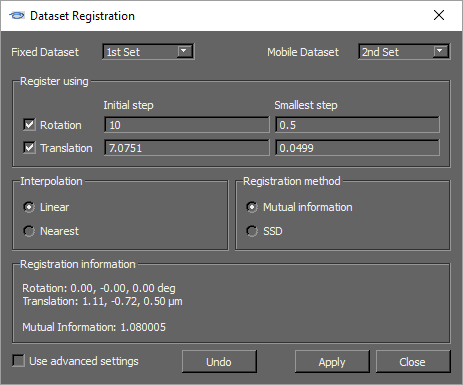
Dataset Registration dialog
| Description | |
|---|---|
|
Datasets |
Allows you to select the datasets that you need to register. Fixed Dataset… Is the baseline dataset and will not be modified during the registration process. Mobile Dataset… Is the dataset that will be registered with the baseline. You should note that you can register multiple datasets with the baseline, as well as change the baseline. |
|
Register using |
Allows you to select the transformations that will be allowed during the registration process, as well as an Initial step and Smallest step for each selected parameter. Rotation… If selected, rotation may be applied to the mobile dataset. Translation… If selected, translation may be applied to the mobile dataset. NOTE The estimate of the rotation and translation initial steps should be approximate to the observed displacement. |
|
Interpolation |
Allows you select the type of interpolation that will be applied during the registration process. Nearest… Is the most basic interpolation scheme and only considers one pixel when filtering. Linear… Considers the closest 2x2 neighborhood and then takes a weighted average of these 4 pixels to arrive at its final interpolated value. Usually results in smoother looking images than Nearest. |
|
Registration method |
Allows you to select a matching process — either Mutual information or SSD. Mutual information… Mutual information is a basic concept from information theory that can be applied in the context of image registration to measure the amount of information that one image contains about another. Image registration by maximization of mutual information considers all voxels in the images to be registered to estimate the statistical dependence between corresponding voxel intensities. The registration criteria postulates that mutual information is maximal when the images are correctly aligned. You should note that the criterion is histogram based rather than intensity based, does not impose limiting assumptions on the specific nature of the relationship between corresponding voxel intensities, and is shading independent. Refer to the following for more information: Medical Image Registration Using Mutual Information, Frederik Maes, Dirk Maes, and Paul Suetens. Proceedings of the IEEE, Vol. 91, No. 10, 2003. SSD… In the SSD (sum of squared differences) matching process, differences are squared and aggregated within a square window and later optimized by a winner-take-all strategy. This measure has a higher computational complexity compared to sum of absolute differences (SAD) algorithms as it involves numerous multiplication operations, but can produce superior results. NOTE Sum of squared differences is commonly used for registering image data of the same modality. |
|
Registration information |
Provides information about the transformations that were applied to the selected dataset. |
|
Use advanced settings |
Provides additional options. When using the Advanced settings, you can select the Initial step and Smallest step that will be applied to each axis of the mobile dataset. |
|
Undo |
Undoes the current registration. |
|
Apply |
Automatically registers the selected mobile dataset with the baseline. |
 How to Register Datasets Automatically
You can use the Move tools to apply an initial registration or align their centroids to help accelerate the automatic registration process (see Using the Move Tools and Image Data Pop-Up Menu).
- Display the required datasets in Fusion mode, recommended (see Working in Fusion Mode).
- Right-click the dataset that will be used as the baseline (fixed dataset) in the Data Properties and Settings panel and then choose Dataset Registration in the pop-up menu.
The Dataset Registration dialog appears.
- Choose the dataset that will be used as the baseline in the Fixed Dataset drop-down menu.
This dataset will not be modified during the registration process.
- Choose the dataset that will be registered with the baseline in the Mobile Dataset drop-down menu.
- Select the transformations that will be allowed — Rotation and/or Translation — as well as an Initial step and Smallest step for each selected parameter.
NOTE If you are using the Advanced settings, you can select an Initial step and Smallest step for each axis of the mobile dataset.
- Select an interpolation method — Linear or Nearest — in the Interpolation box.
- Choose a registration type — Mutual Information or SSD — in the Registration method box.
- Click the Apply button to automatically register the datasets.
- Evaluate the results.
If required, you can modify the selected parameters and then update the registration by clicking the Apply button again. You can also click the Undo button to undo the current registration.
- Save the applied changes, if required. See Exporting Images for information about saving registered image data.